A tour of the console
What each menu item in the console is for, and where to find things.
The console is where you manage Mr C. Open it with Sign in at the top of the website; if you're not signed in, you'll see the sign-in form first. The menu on the left is grouped by what you want to do. You'll only see the items your role allows.
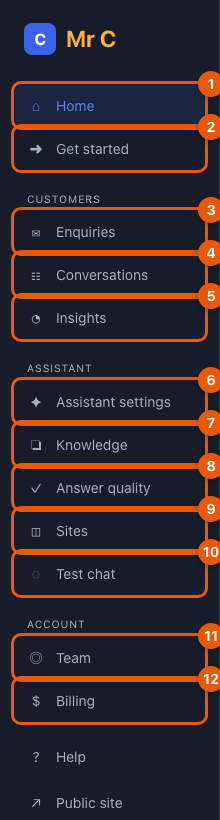
Menu items
| # | Menu item | What it's for |
|---|---|---|
| 1 | Home | Today at a glance: new enquiries, this month's conversations, questions it couldn't answer, and plan usage |
| 2 | Get started | The five-step setup checklist and your website snippet |
| 3 | Enquiries | Visitors who asked to talk to your team: contact them, record the outcome, set up forms and alert emails |
| 4 | Conversations | What visitors asked and how the assistant answered, with visitor ratings |
| 5 | Insights | How well it's answering and the topics it can't answer yet |
| 6 | Assistant settings | The assistant's name, colours and welcome message |
| 7 | Knowledge | Your website, PDFs and FAQs: what the assistant answers from |
| 8 | Answer quality | Test questions to check the assistant answers correctly |
| 9 | Sites | Your website addresses and their verification |
| 10 | Test chat | Try your assistant as a visitor would |
| 11 | Team | Invite people and choose what they can do |
| 12 | Billing | Your plan, usage, payments and invoices |
Help while you work
- Select ? next to a page title to open the guide for that page.
- Select Help in the menu to open this guide.
- Your name and Sign out are at the bottom of the menu.
- New to the console? Replay the short tour (five steps; press Esc to leave it at any time).
Related
Was this page helpful?