Change how your assistant looks and talks
Name, colours, welcome message, position and what it suggests when it can't answer.
Steps
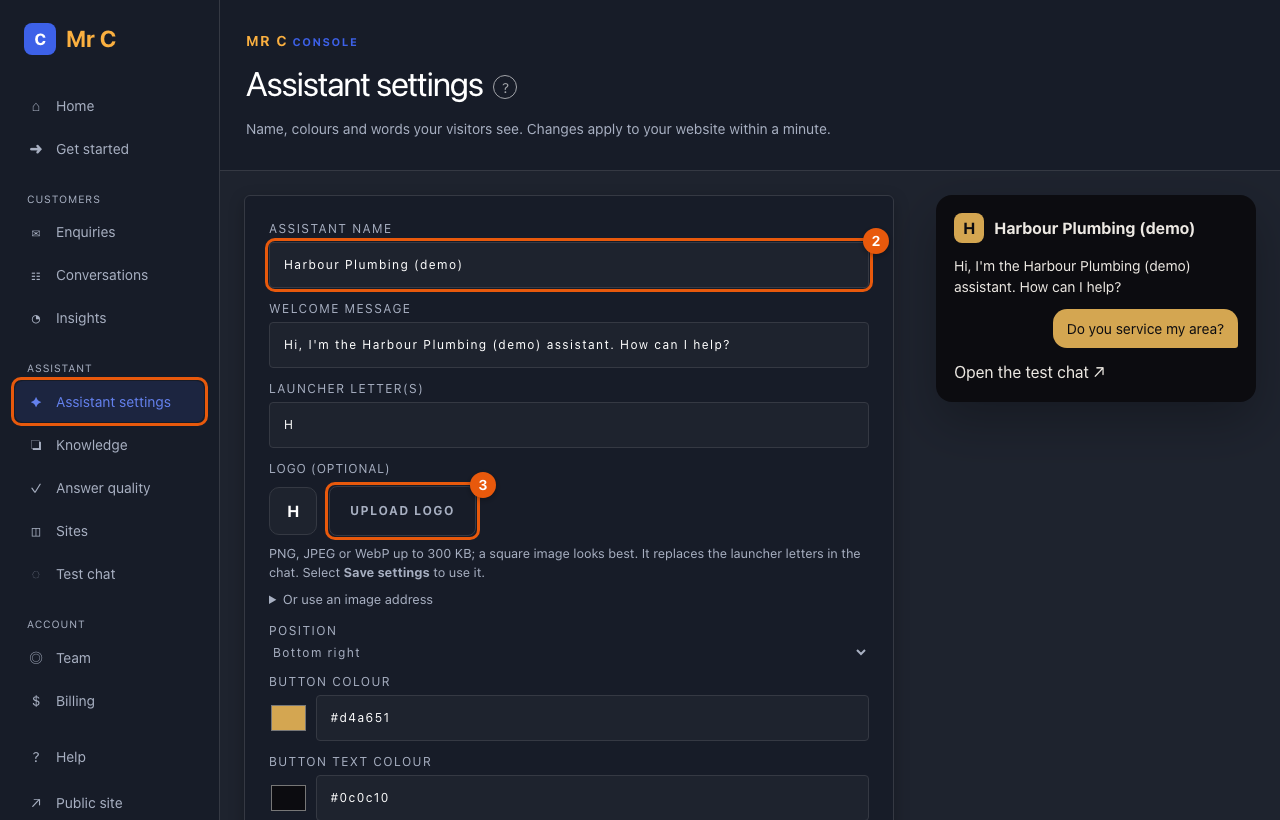
- Open Console → Assistant settings.
- Change the name, welcome message, launcher letters and position. The preview on the right updates as you type.
- Select Upload logo and choose a PNG, JPEG or WebP image up to 300 KB (a square image looks best). You can also link to an image address instead.
- Choose colours. The contrast line must say readable, which keeps the chat easy to read for everyone.
- Optionally fill in When it can't answer, suggest, for example Email us at [email protected].
- Select Save settings. Your website shows the changes within a minute.
Tips
- Keep the welcome message short and specific: "Hi! Ask me about prices, service areas or booking a job."
- Use Open the test chat to see the real thing.
Related
Was this page helpful?